
Download link
Read before
WINDOWS VERSION
Make sure your Microsoft Windows version matches the Microsoft Windows version of the key.
CHECK CONNECTION
Verify that you have a stable Internet connection during installation. Please follow these steps for a successful activation.
ONLINE ACTIVATION
If you already have Microsoft Windows 11 Pro installed, try online activation 2-3 times (if successful ignore the rest)
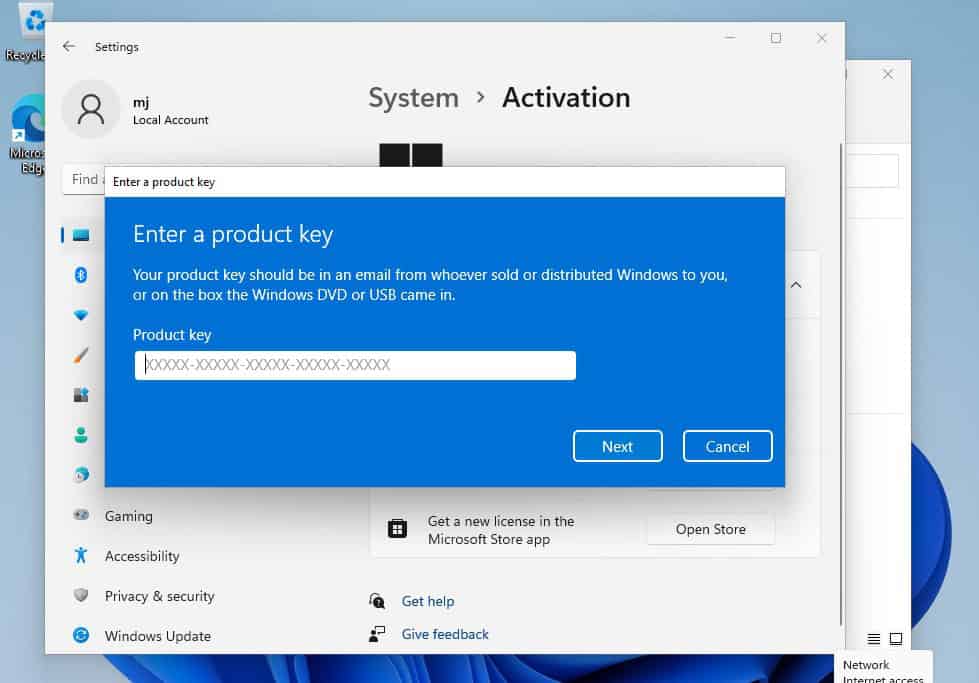
After installing the Operating System. Let’s go and right-click on My Computer and select the properties option and click on the Activate Microsoft Windows option, then activate and enter the key provided.
Installation guide
NEW INSTALLATION:
After downloading, open the installer and follow instructions to create a bootable USB drive or an ISO file to burn to DVD. Please make sure to back up your important files and data before proceeding! Once you boot your PC / Laptop with the DVD / USB drive, the installation program will run. Follow the guided steps of the program to set it up to your preferences and complete the installation.
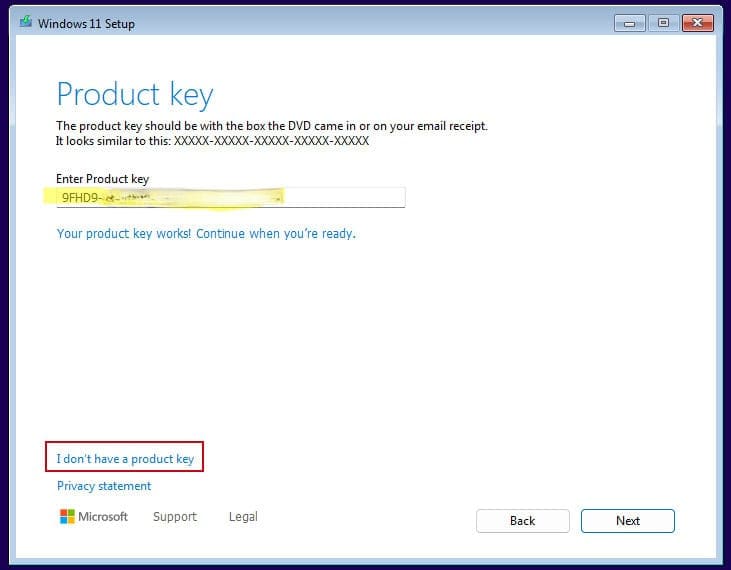
During the installation you will be prompted to enter the license key you received by email. In case you don’t have the key on hand, you may choose the option “I don’t have a product key” and enter the key after finishing the installation.
In case you didn’t enter the license key during installation:
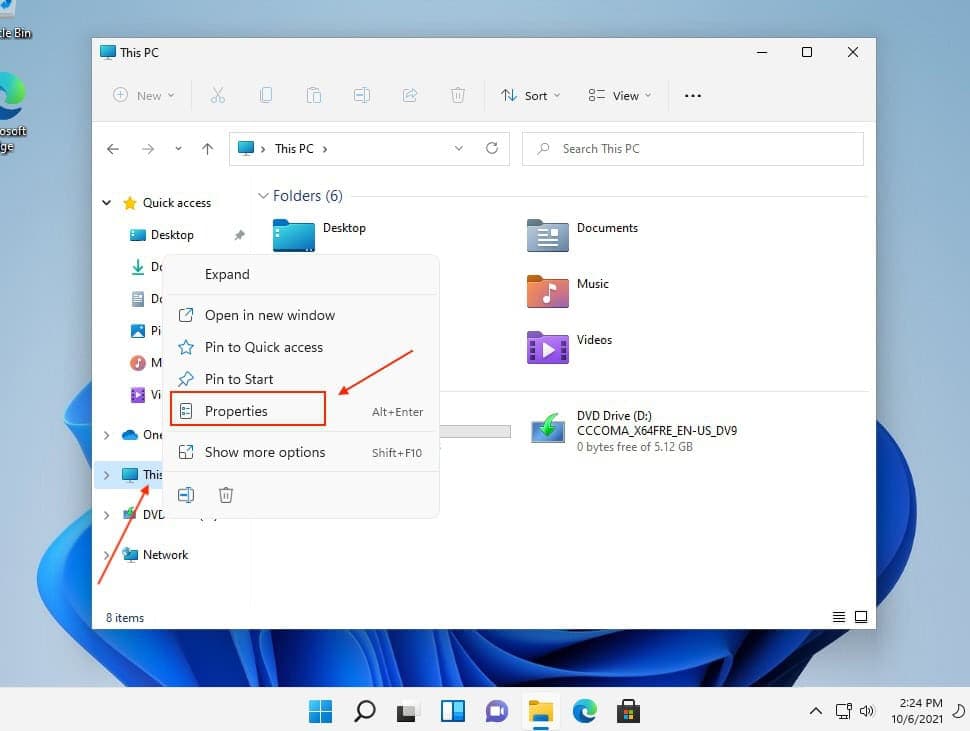
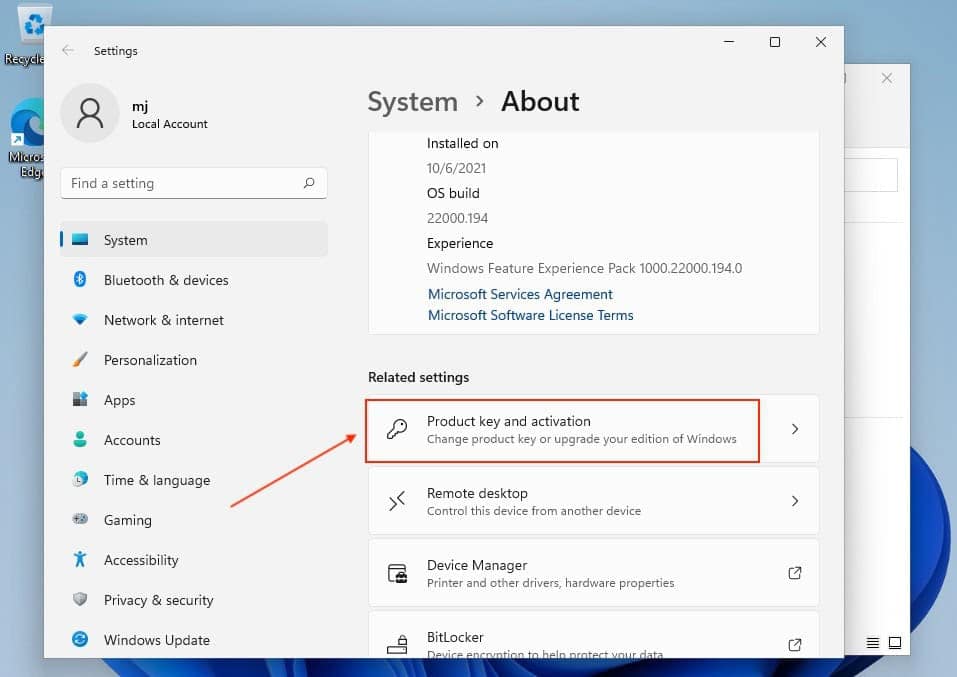
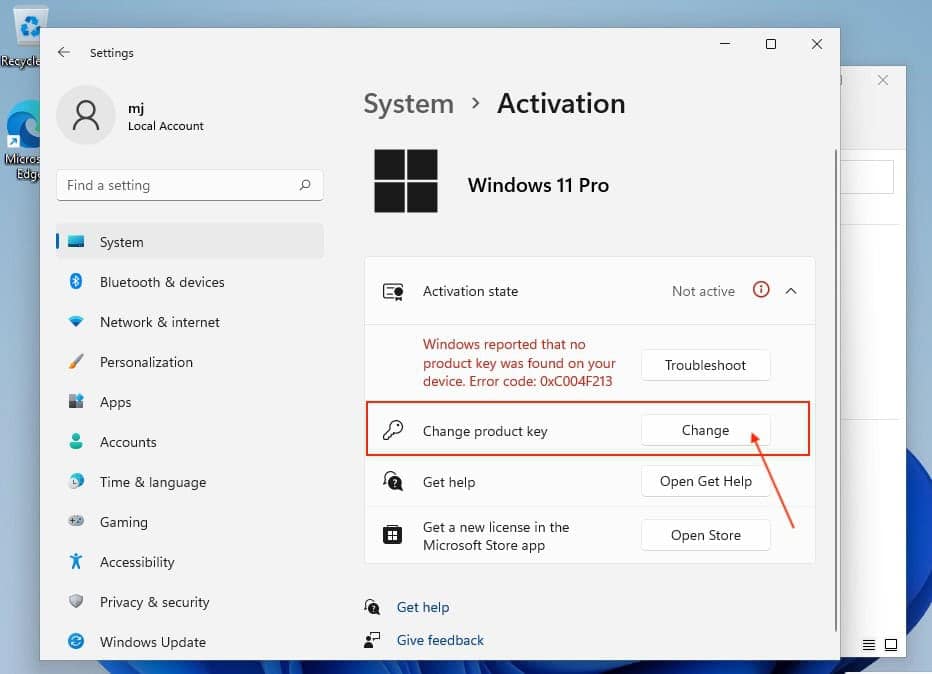
After installing the Operating System, right-click on This PC in the file explorer and select the Properties option. Click on Product Key and Activation. Go to Change product key to enter the key you received by email. Your copy of Windows is now activated.
If online activation was not sucessful
Activate your password by phone: to do this, select «Show other activation methods» -> «Next» -> «Automatic during Windows activation. Use the phone system ».
Choose your location and call one of the numbers shown.
- Activation through Microsoft’s central activation center:
- Please try 2 or 3 times in case it doesn’t work right away.
- Activation computer does not always recognize input immediately
WINDOWS VERSION
Make sure your Microsoft Windows version matches the Microsoft Windows version of the key.
CHECK CONNECTION
Verify that you have a stable Internet connection during installation. Please follow these steps for a successful activation.
ONLINE ACTIVATION
If you already have Microsoft Windows 11 Pro installed, try online activation 2-3 times (if successful ignore the rest)
After installing the Operating System. Let’s go and right-click on My Computer and select the properties option and click on the Activate Microsoft Windows option, then activate and enter the key provided.
NEW INSTALLATION:
After downloading, open the installer and follow instructions to create a bootable USB drive or an ISO file to burn to DVD. Please make sure to back up your important files and data before proceeding! Once you boot your PC / Laptop with the DVD / USB drive, the installation program will run. Follow the guided steps of the program to set it up to your preferences and complete the installation.
During the installation you will be prompted to enter the license key you received by email. In case you don’t have the key on hand, you may choose the option “I don’t have a product key” and enter the key after finishing the installation.
In case you didn’t enter the license key during installation:
After installing the Operating System, right-click on This PC in the file explorer and select the Properties option. Click on Product Key and Activation. Go to Change product key to enter the key you received by email. Your copy of Windows is now activated.
Activate your password by phone: to do this, select «Show other activation methods» -> «Next» -> «Automatic during Windows activation. Use the phone system ».
Choose your location and call one of the numbers shown.
- Activation through Microsoft’s central activation center:
- Please try 2 or 3 times in case it doesn’t work right away.
- Activation computer does not always recognize input immediately