
Download Link
Read before
WINDOWS VERSION
Make sure your Microsoft Windows version matches the Microsoft Windows version of the key.
CHECK CONNECTION
Verify that you have a stable Internet connection during installation. Please follow these steps for a successful activation.
ONLINE ACTIVATION
If you already have Microsoft Windows 10 Pro installed, try online activation 2-3 times (if successful ignore the rest)
After installing the Operating System. Let’s go and right-click on My Computer and select the properties option and click on the Activate Microsoft Windows option, then activate and enter the key provided.
Installation guide
It is recommended that you complete the product installation and activation before signing in with your Microsoft account. NOTE: If you are upgrading from Microsoft Windows 10 Home, you don’t need to download the software. Please use the instructions below to update your computer to Microsoft Windows 10 Pro.
UPGRADE FROM WINDOWS 10 HOME:
It is recommended that you complete the product installation and activation before signing in with your Microsoft account.
- Deactivate your internet connection for the following process!
- Open the Settings app via the start menu (or the start page in tablet mode) and select the category Update and Security.
- Select Activation and then click the button Change Product Key. Enter the generic Microsoft Windows 10 Pro key VK7JG-NPHTM-C97JM-9MPGT-3V66T. This key turns Microsoft Windows 10 Home into Microsoft Windows 10 Pro.
- After restarting to upgrade to Microsoft Windows 10 Pro, the operating system is no longer activated.
Then enter the valid Microsoft Windows 10 Pro key for activation.
In some cases, the update might abort at 100% with an error. If that happens, restart manually and your system will have been upgraded to Microsoft Windows 10 Pro. You can now activate it using the provided key.
NEW INSTALLATION:
After downloading, burn the ISO file to DVD or save it to USB. Once you boot your PC / Laptop with the DVD / Pendrive the installation program will run. Follow the guided steps of the program to complete its installation.
After installing the Operating System. Let’s go and right-click on My Computer and select the properties option and click on the Activate Microsoft Windows option, then activate and enter the key provided.
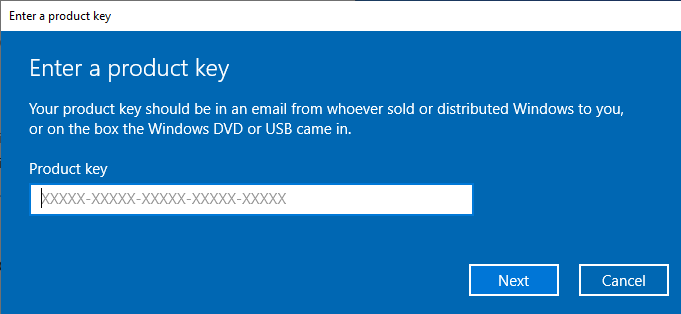
If online activation was not sucessful
Activate your password by phone: to do this, select «Show other activation methods» -> «Next» -> «Automatic during Windows activation. Use the phone system ».
Choose your location and call one of the numbers shown.
- Activation through Microsoft’s central activation center:
- Please try 2 or 3 times in case it doesn’t work right away.
- Activation computer does not always recognize input immediately
WINDOWS VERSION
Make sure your Microsoft Windows version matches the Microsoft Windows version of the key.
CHECK CONNECTION
Verify that you have a stable Internet connection during installation. Please follow these steps for a successful activation.
ONLINE ACTIVATION
If you already have Microsoft Windows 10 Pro installed, try online activation 2-3 times (if successful ignore the rest)
After installing the Operating System. Let’s go and right-click on My Computer and select the properties option and click on the Activate Microsoft Windows option, then activate and enter the key provided.
It is recommended that you complete the product installation and activation before signing in with your Microsoft account. NOTE: If you are upgrading from Microsoft Windows 10 Home, you don’t need to download the software. Please use the instructions below to update your computer to Microsoft Windows 10 Pro.
UPGRADE FROM WINDOWS 10 HOME:
It is recommended that you complete the product installation and activation before signing in with your Microsoft account.
- Deactivate your internet connection for the following process!
- Open the Settings app via the start menu (or the start page in tablet mode) and select the category Update and Security.
- Select Activation and then click the button Change Product Key. Enter the generic Microsoft Windows 10 Pro key VK7JG-NPHTM-C97JM-9MPGT-3V66T. This key turns Microsoft Windows 10 Home into Microsoft Windows 10 Pro.
- After restarting to upgrade to Microsoft Windows 10 Pro, the operating system is no longer activated.
Then enter the valid Microsoft Windows 10 Pro key for activation.
In some cases, the update might abort at 100% with an error. If that happens, restart manually and your system will have been upgraded to Microsoft Windows 10 Pro. You can now activate it using the provided key.
NEW INSTALLATION:
After downloading, burn the ISO file to DVD or save it to USB. Once you boot your PC / Laptop with the DVD / Pendrive the installation program will run. Follow the guided steps of the program to complete its installation.
After installing the Operating System. Let’s go and right-click on My Computer and select the properties option and click on the Activate Microsoft Windows option, then activate and enter the key provided.
Activate your password by phone: to do this, select «Show other activation methods» -> «Next» -> «Automatic during Windows activation. Use the phone system ».
Choose your location and call one of the numbers shown.
- Activation through Microsoft’s central activation center:
- Please try 2 or 3 times in case it doesn’t work right away.
- Activation computer does not always recognize input immediately
We wish you a successful installation. If you still have problems or questions about the installation, please contact our customer service at any time. We will help you as soon as possible.